 ›
PortaPack ›
Use Cases › Airband
›
PortaPack ›
Use Cases › Airband
Airband — Listen to Aircraft
Eavesdrop on pilots and air traffic control. AM voice, short bursts, the real thing.
- Attach the telescopic antenna, extend to ~59 cm.
- Tune to your nearest airport's ATIS frequency — it broadcasts continuously, 24/7.
- Mode: AM. Bandwidth: 8 kHz. Squelch: off.
- LNA: 16 dB · VGA: 16 dB · Amp: OFF.
- Be patient — traffic is bursty. ATIS is continuous and confirms your setup works.
1What you'll hear
Air traffic control voice in AM — short crisp bursts with a strict professional phraseology:
"Speedbird 22 Heavy, descend flight level 80, QNH 1012."
- ATIS — Automatic Terminal Information Service. A looping robot voice repeating weather, active runway, and pressure. Broadcasts continuously — perfect for testing your setup.
- Tower / Approach — live clearances, vectors, position reports. Bursty — sometimes minutes of silence between calls.
- Squelch tail — a brief hiss at the end of each transmission. Normal.
Find your nearest airport's ATIS frequency and tune there first. It's on 24/7, never pauses. If you hear it, your setup is confirmed working. Then move to tower or approach for live traffic.
2Legal context
Listening to airband is a grey area in most countries — not as clear-cut as FM broadcast. The honest picture:
Passive reception of aviation frequencies is technically restricted in many jurisdictions — ATC is not intended for public consumption. In practice, enforcement against private scanner listeners is virtually nonexistent, and aviation enthusiasts have been doing this for decades worldwide.
What is definitely prosecuted everywhere: retransmitting, publishing, or acting on what you hear. Don't post recordings online, don't share clips, don't act on anything you hear.
- OK: Listen privately, learn the phraseology, study radio propagation.
- OK: Use it as a learning tool for AM demodulation and signal reception.
- Not OK: Record and publish, share on social media, use the information.
- Absolutely not OK: Transmit on aviation frequencies. Ever. Serious criminal offence globally.
3Antenna choice
Airband sits at 118–137 MHz. Quarter-wave for the middle of the band (~127 MHz): 7500 ÷ 127 ≈ 59 cm.
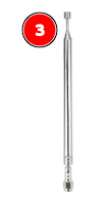
Telescopic antenna — extended to 59 cm
Range: 40 MHz – 6 GHz · Tunable
Extend until the total length is ~59 cm. Airband is line-of-sight — the antenna placement matters more than it does for FM. Near or outside a window is significantly better than in the middle of a room.
Any wall, especially with metal mesh or foil insulation, attenuates airband noticeably. Put the antenna near or outside a window with a view of the sky. Outdoors on a balcony is dramatically better.
4Workflows
From the Mayhem home screen, select Receive, then Audio.
Tap the frequency display and dial in your nearest airport's ATIS frequency. Use the encoder wheel to fine-tune. Check the frequencies table below for starting points.
Tap the mode selector → AM. Bandwidth: DSB or the narrowest AM filter available (~8–9 kHz).
LNA: 16 dB · VGA: 16 dB · Amp: OFF
If nothing comes through → raise LNA to 24 in steps of 8. Never start with everything maxed.
Leave squelch off. You should hear faint static — that means the receiver is running. Transmissions will cut through clearly. A quiet airport can have 5+ minutes between calls, be patient.
If nothing happens, switch to the Scanner app and scan 118.000–137.000 MHz. The PortaPack stops automatically on active frequencies.
SDR++ installed, HackRF drivers present. Verify with hackrf_info in terminal before opening SDR++.
Source dropdown (top left): select HackRF One. Click Refresh until your device appears, then hit ▶ Play.
Sample rate: 10 MHz — shows the full airband (118–137 MHz) at once.
LNA: 16 dB · VGA: 16 dB · Amp: OFF · Bias-T: OFF · IQ Correction: ON
Type 127.500 MHz as centre frequency. This puts 118–137 MHz visible at once. Look for occasional narrow bright flashes — each one is a transmission.
Radio module: mode AM · bandwidth 8000 Hz · squelch off initially.
Snap interval: 8333 Hz (modern 8.33 kHz channel spacing) or 25000 for legacy spacing.
Click any bright flash in the waterfall. Or type your nearest ATIS frequency directly into the VFO. ATIS is guaranteed to be there.
Enable the Recorder module. Record audio for listening back; record baseband IQ if you want to re-analyse later.
5Frequencies to try
Find your nearest airport and look up its ATIS frequency — that's your guaranteed first signal. Below are common service types and a few examples.
Service types — what to look for
| Service | What you'll hear | Notes |
|---|---|---|
| ATIS | Continuous robot voice — weather, runway, QNH | Best first target. On 24/7, never pauses. |
| Tower | Takeoff/landing clearances | Busy during peaks (morning/evening). Silent at night. |
| Approach / Departure | Aircraft being vectored, climb/descent instructions | More traffic than tower at large airports. |
| Ground | Taxi instructions on the ground | Weaker signal — only strong near the airport. |
Universal frequencies
| Frequency | Service | Notes |
|---|---|---|
| 121.500 MHz | Emergency / Guard | International emergency channel. Usually silent. Never transmit. |
| 122.800 MHz | Unicom | Common frequency at uncontrolled airfields. |
Search for your nearest airport's ICAO code (e.g. EGLL, LFPG, EBBR) on sites like airnav.com or the national AIP (Aeronautical Information Publication) — they list all published frequencies for every airport.
6What it looks like in the waterfall
An airband AM transmission appears as a narrow vertical bright flash — typically 6–8 kHz wide, with a brighter centre carrier and two symmetric sidebands. Unlike FM broadcast (200 kHz wide, continuous), airband signals are narrow and bursty.
Between transmissions the waterfall is flat noise. When someone transmits, a narrow bright stripe appears for a few seconds, then disappears.
7Troubleshooting
I hear nothing at all, not even static
1. Is the receiver started? (▶ Play in SDR++, or Start in Mayhem)
2. Is the antenna connected? Check the SMA connector — hand-tight.
3. Try LNA 24, VGA 20. Some locations need higher gain.
4. Power issue — HackRF is power-hungry. Use a direct USB port, not a hub.
I hear static but no voice transmissions
Static is good — the receiver works. Try ATIS first: it transmits continuously. If you hear the ATIS robot voice, your setup is fine and you just need to wait for other traffic. If ATIS is also silent, check frequency (it may have changed) and move closer to a window.
I hear FM music bleeding through
Classic HackRF front-end overload from nearby FM broadcast stations. FM is much stronger than airband. Fix: lower LNA to 8 or 0, shorten the antenna slightly. Long-term solution: an inline FM band-stop filter (~€20) between antenna and HackRF.
Audio is distorted or clipped
Gain too high or a strong signal is saturating the front end. Lower LNA and VGA. If you have the external LNA module (⑤) connected, disconnect it — airband doesn't need it.
Bright line in the centre of the waterfall
DC spike — normal LO leakage from the HackRF. Enable IQ Correction in SDR++ source settings, or tune your centre frequency slightly off from your target frequency.
SDR++ doesn't detect the HackRF
Run hackrf_info in terminal first. If that works, the issue is SDR++ permissions. Linux: add yourself to the plugdev group. Windows: install WinUSB driver via Zadig. macOS: brew install hackrf.
8Next steps
Got airband working? Where to go next:
- Session 03 — ADS-B: The same aircraft you're hearing, now plotted on a map. 1090 MHz, decode with dump1090.
- Scan systematically: Use PortaPack scanner mode across 118–137 MHz to find which frequencies are active in your area.
- Try marine VHF: Same antenna, mode NFM, 156–162 MHz. Ships and ports instead of aircraft.
- Compare with LiveATC.net: Stream the same frequency online and compare — you'll hear different traffic depending on where you and the LiveATC antenna are.